How to Open HEIC Files on Windows (and Convert Them to JPG)
iPhone photos come out as HEIC and Windows cannot open them without extras. Here are the three ways to fix it, including one that needs no installs and no uploads.
You email yourself an iPhone photo, open it on a Windows PC, and get a file your machine refuses to display. The culprit is HEIC — Apple's default photo format, which stores the same picture as JPG in about half the size, but which almost nothing outside the Apple ecosystem can open.
Here are the three practical fixes, from slowest to fastest.
Why Windows can't open HEIC
Windows does not ship a HEIC decoder. Microsoft offers two Store extensions: HEIF Image Extensions (free) and HEVC Video Extensions ($0.99). Install both and the Photos app can usually open HEIC files. It works, but it only fixes viewing on that one machine — send the photo onward and the next person hits the same wall. And many third-party tools, including ones built on Google's Squoosh codebase, have no HEIC support at all.
Option 1: Install the extensions (viewing only)
Open Microsoft Store, install HEIF Image Extensions and HEVC Video Extensions, then reopen the file in Photos. Downsides: a $0.99 purchase, Windows-only, and the file is still HEIC — most websites, chat apps and printers still reject it.
Option 2: Ask the iPhone to shoot JPG instead (prevention)
On the iPhone: Settings → Camera → Formats → "Most Compatible" switches new photos to JPG. It does nothing for the thousands of HEIC photos you already have, but it stops the problem from growing.
Option 3: Convert HEIC to JPG in the browser (no installs, no uploads)
PixSip decodes HEIC itself — the capability Squoosh lacks — so iPhone photos open and convert in any browser, on Windows, Mac or Linux:
- Open the HEIC to JPG converter.
- Drop up to 20 HEIC files (10 MB each).
- Each one comes back as JPG with its own size and download button — or grab the whole batch as a ZIP.
Everything runs locally: your photos never leave the device, there is nothing to install, and it is free with no watermark. On our benchmark the JPG output matched or beat TinyPNG's file size on 18 of 20 images at comparable quality.
Which one should you use?
- Need to view one photo on one Windows PC → the Store extensions are fine.
- Want every future photo to just work → switch the iPhone to Most Compatible.
- Have a pile of HEIC photos and want JPGs that work everywhere → convert in the browser. No install, no upload, works on any OS.
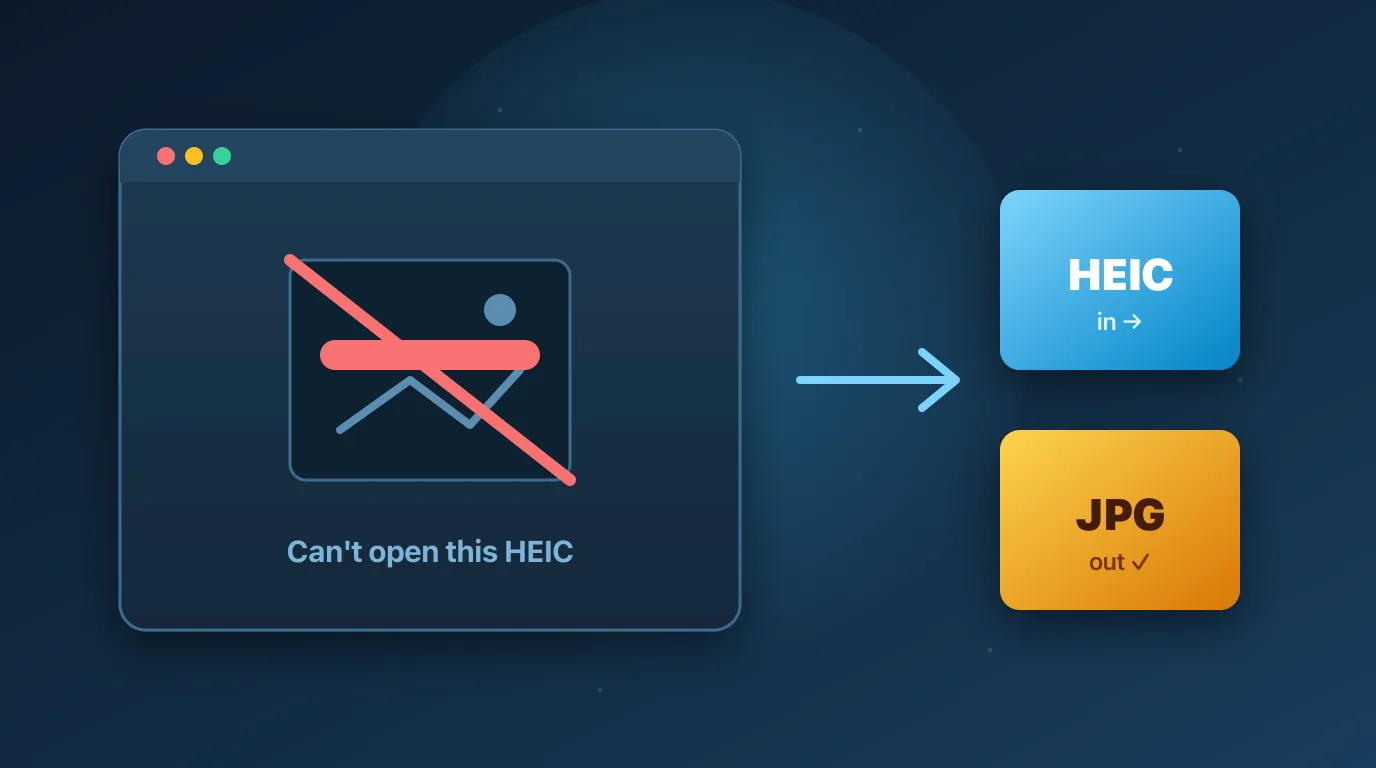
HEIC is a good format on the phone; it is a bad format everywhere else. The pragmatic move is converting at the point where your photos leave the Apple bubble.
Keep reading: why PixSip runs in your browser, the image format guide, or try compress JPG and convert to WebP.